> ## Documentation Index
> Fetch the complete documentation index at: https://smallestai-ff1e543d.mintlify.site/llms.txt
> Use this file to discover all available pages before exploring further.
# Introduction
> Speech AI APIs by Smallest AI — generate speech with Lightning TTS and transcribe audio with Pulse STT.
[Smallest AI](https://smallest.ai?utm_source=documentation\&utm_medium=getting-started) builds speech AI models and APIs. Generate natural speech, transcribe audio in real-time, and clone voices — all through simple API calls.
## Models
Generate speech with 80+ voices, 44.1 kHz audio, and \~100ms latency. English, Hindi, Spanish, Tamil.
Transcribe audio in real-time or from files. 39 languages, speaker diarization, emotion detection.
## Get Your API Key
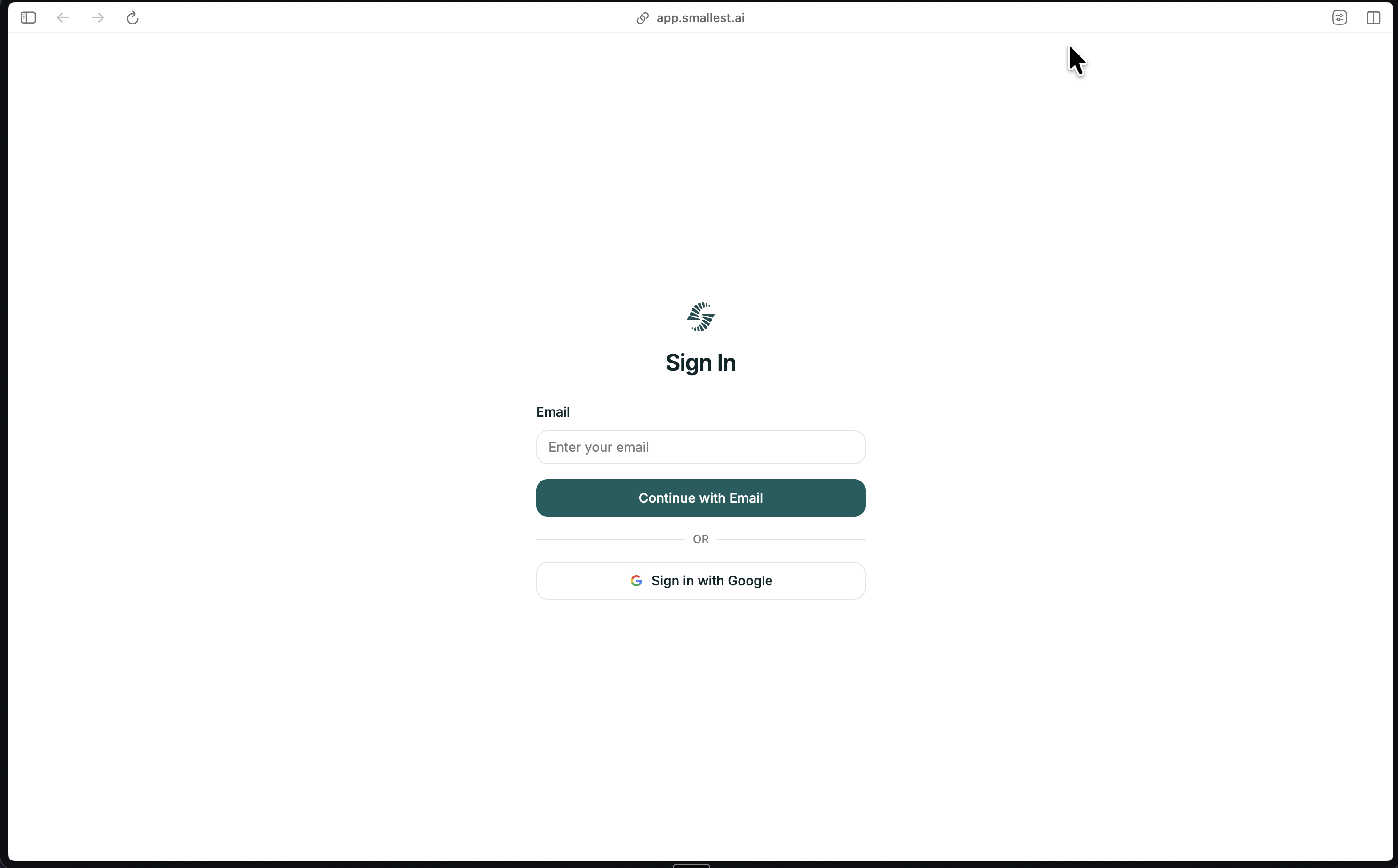
Go to [app.smallest.ai](https://app.smallest.ai?utm_source=documentation\&utm_medium=getting-started) and sign up with email or Google.
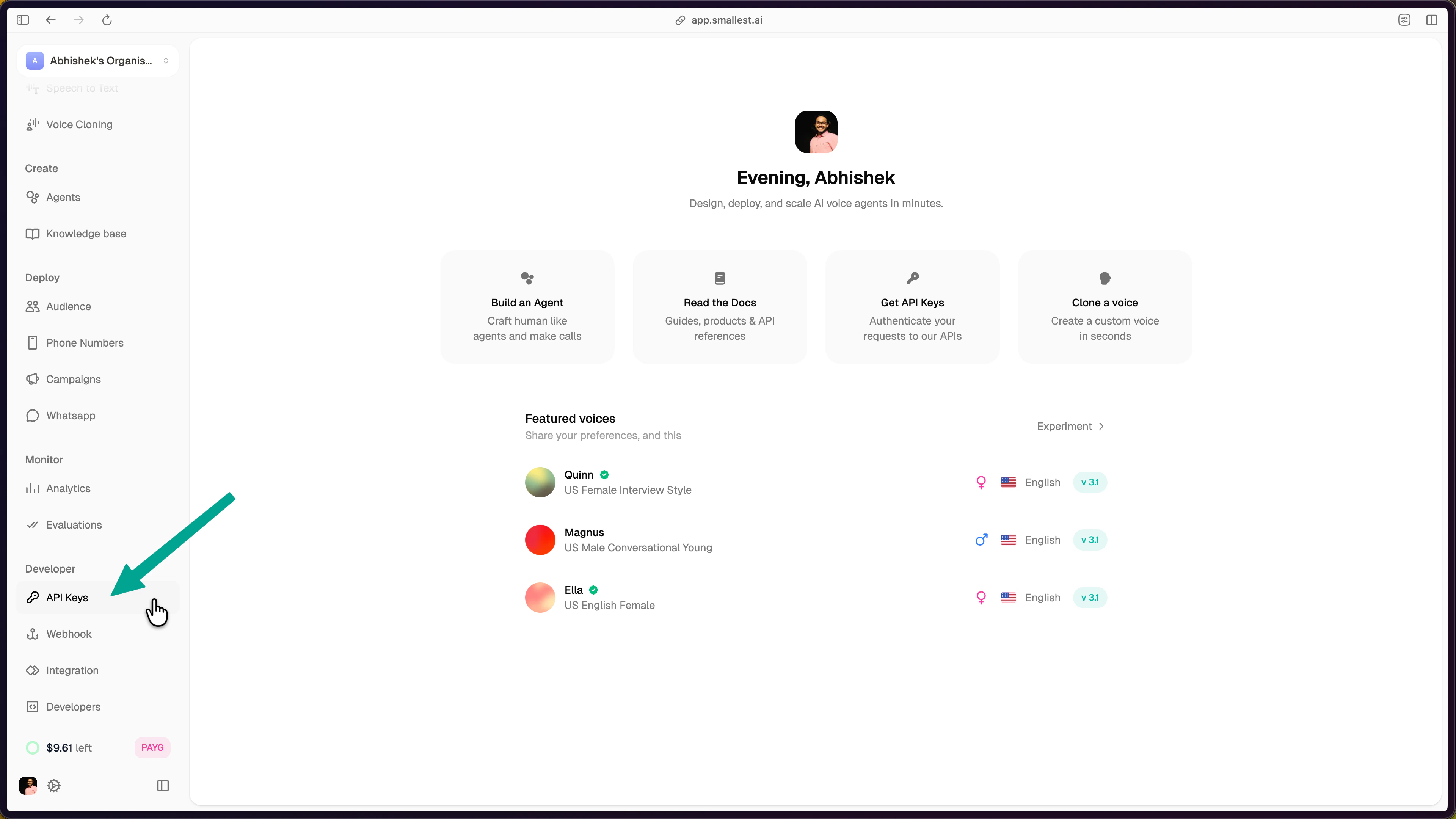
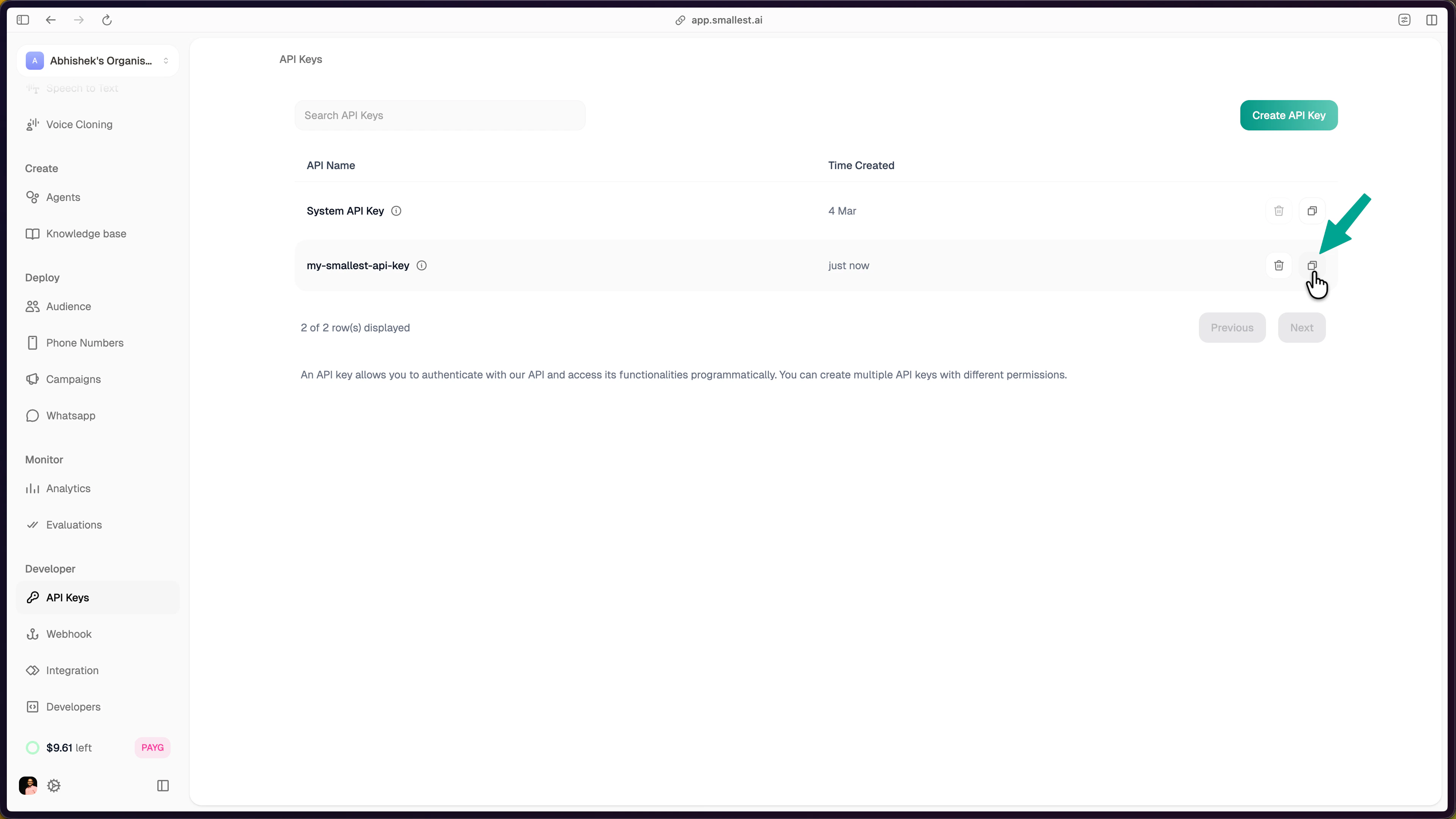
 In the [Smallest AI console](https://app.smallest.ai/dashboard), select **API Keys** from the left sidebar under **Developer**.
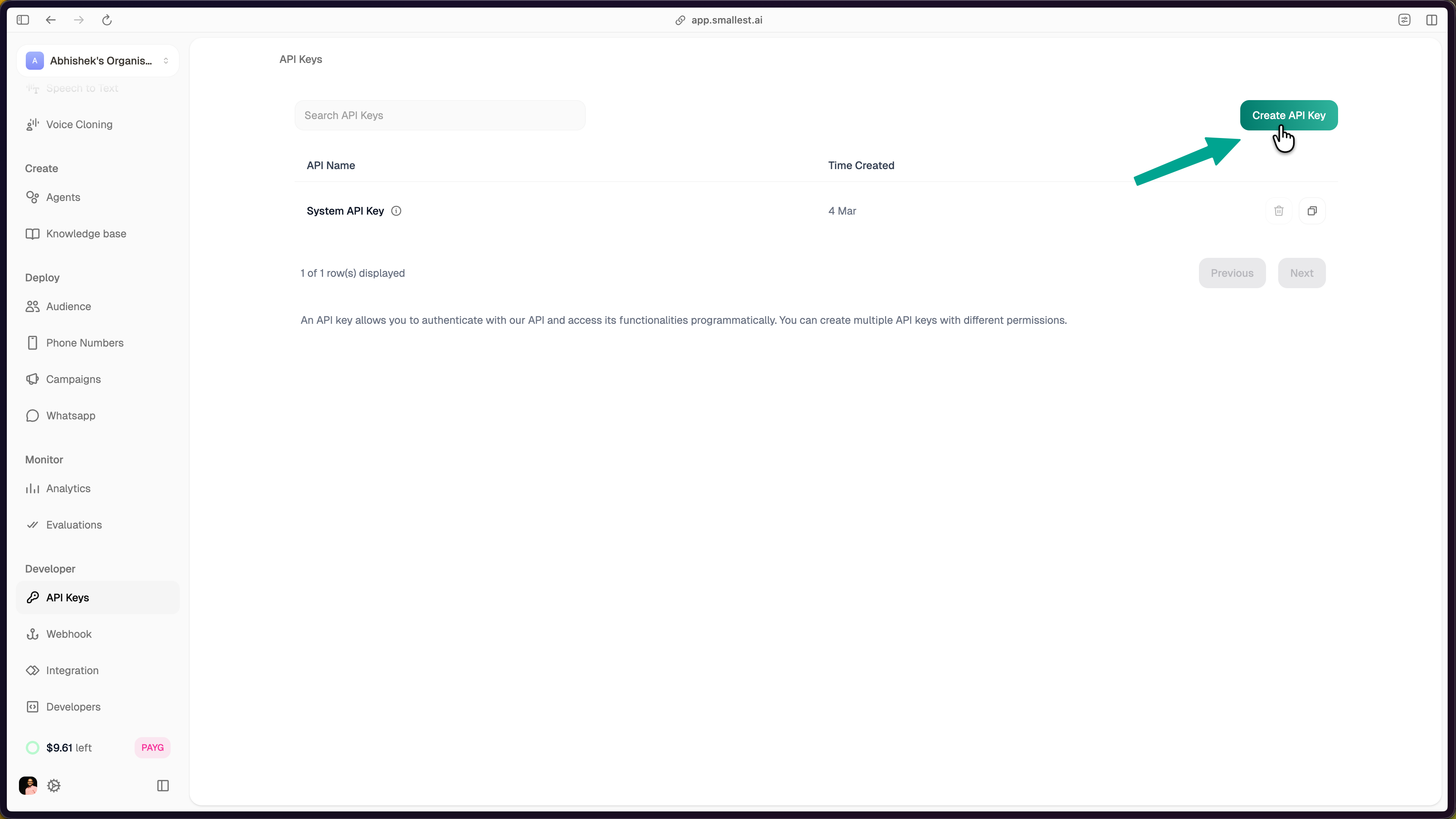
 Click the **Create API Key** button in the top-right corner.
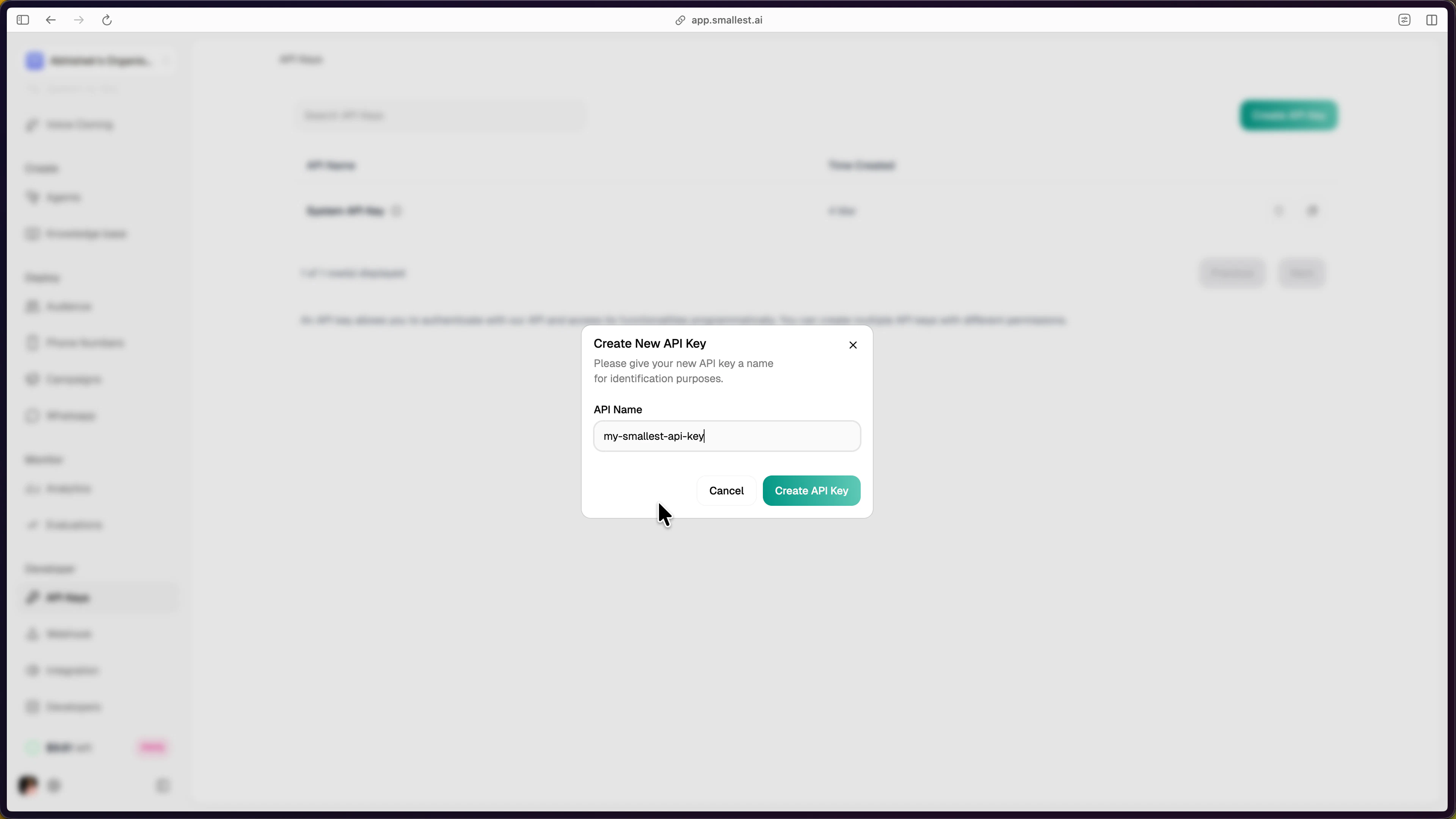
 Enter a name for the key and click **Create API Key**.
 The newly created key appears in your API Keys dashboard. Click the copy icon to copy it.
 Set it in your terminal:
```bash theme={null}
export SMALLEST_API_KEY="your-api-key-here"
```
## Try It Now
### Generate speech (Lightning TTS)
Paste this in your terminal — no install required:
```bash theme={null}
curl -X POST "https://api.smallest.ai/waves/v1/lightning-v3.1/get_speech" \
-H "Authorization: Bearer $SMALLEST_API_KEY" \
-H "Content-Type: application/json" \
-d '{"text": "Hello from Smallest AI!", "voice_id": "magnus", "sample_rate": 24000, "output_format": "wav"}' \
--output hello.wav
```
Play `hello.wav` — you should hear the same quality as the sample above.
### Transcribe audio (Pulse STT)
```bash theme={null}
curl -X POST "https://api.smallest.ai/waves/v1/pulse/get_text?language=en" \
-H "Authorization: Bearer $SMALLEST_API_KEY" \
-H "Content-Type: application/json" \
-d '{"url": "https://github.com/smallest-inc/cookbook/raw/main/speech-to-text/getting-started/samples/audio.wav"}'
```
You'll get back:
```json theme={null}
{
"transcription": "This is a sample audio file for testing speech to text transcription with the Pulse API."
}
```
## Next Steps
Full guide with Python, JavaScript, and SDK examples.
Transcribe files and stream audio in real-time.
Benchmarks, specs, and capabilities.
Production-ready example projects.
See what developers have built with Smallest AI.
Open-source cookbook with 20+ examples.
## Community & Support
Ask questions, share projects, and connect with other developers.
Reach our team directly for technical assistance.
Set it in your terminal:
```bash theme={null}
export SMALLEST_API_KEY="your-api-key-here"
```
## Try It Now
### Generate speech (Lightning TTS)
Paste this in your terminal — no install required:
```bash theme={null}
curl -X POST "https://api.smallest.ai/waves/v1/lightning-v3.1/get_speech" \
-H "Authorization: Bearer $SMALLEST_API_KEY" \
-H "Content-Type: application/json" \
-d '{"text": "Hello from Smallest AI!", "voice_id": "magnus", "sample_rate": 24000, "output_format": "wav"}' \
--output hello.wav
```
Play `hello.wav` — you should hear the same quality as the sample above.
### Transcribe audio (Pulse STT)
```bash theme={null}
curl -X POST "https://api.smallest.ai/waves/v1/pulse/get_text?language=en" \
-H "Authorization: Bearer $SMALLEST_API_KEY" \
-H "Content-Type: application/json" \
-d '{"url": "https://github.com/smallest-inc/cookbook/raw/main/speech-to-text/getting-started/samples/audio.wav"}'
```
You'll get back:
```json theme={null}
{
"transcription": "This is a sample audio file for testing speech to text transcription with the Pulse API."
}
```
## Next Steps
Full guide with Python, JavaScript, and SDK examples.
Transcribe files and stream audio in real-time.
Benchmarks, specs, and capabilities.
Production-ready example projects.
See what developers have built with Smallest AI.
Open-source cookbook with 20+ examples.
## Community & Support
Ask questions, share projects, and connect with other developers.
Reach our team directly for technical assistance.