> ## Documentation Index
> Fetch the complete documentation index at: https://smallestai-ff1e543d.mintlify.site/llms.txt
> Use this file to discover all available pages before exploring further.
# Authentication
> Create an API key and authenticate requests to the Smallest AI APIs.
Every API request requires an API key in the `Authorization` header.
## Create Your API Key
In the [Smallest AI Console](https://app.smallest.ai/dashboard/settings/apikeys?utm_source=documentation\&utm_medium=authentication), click **API Keys** in the Settings sidebar.
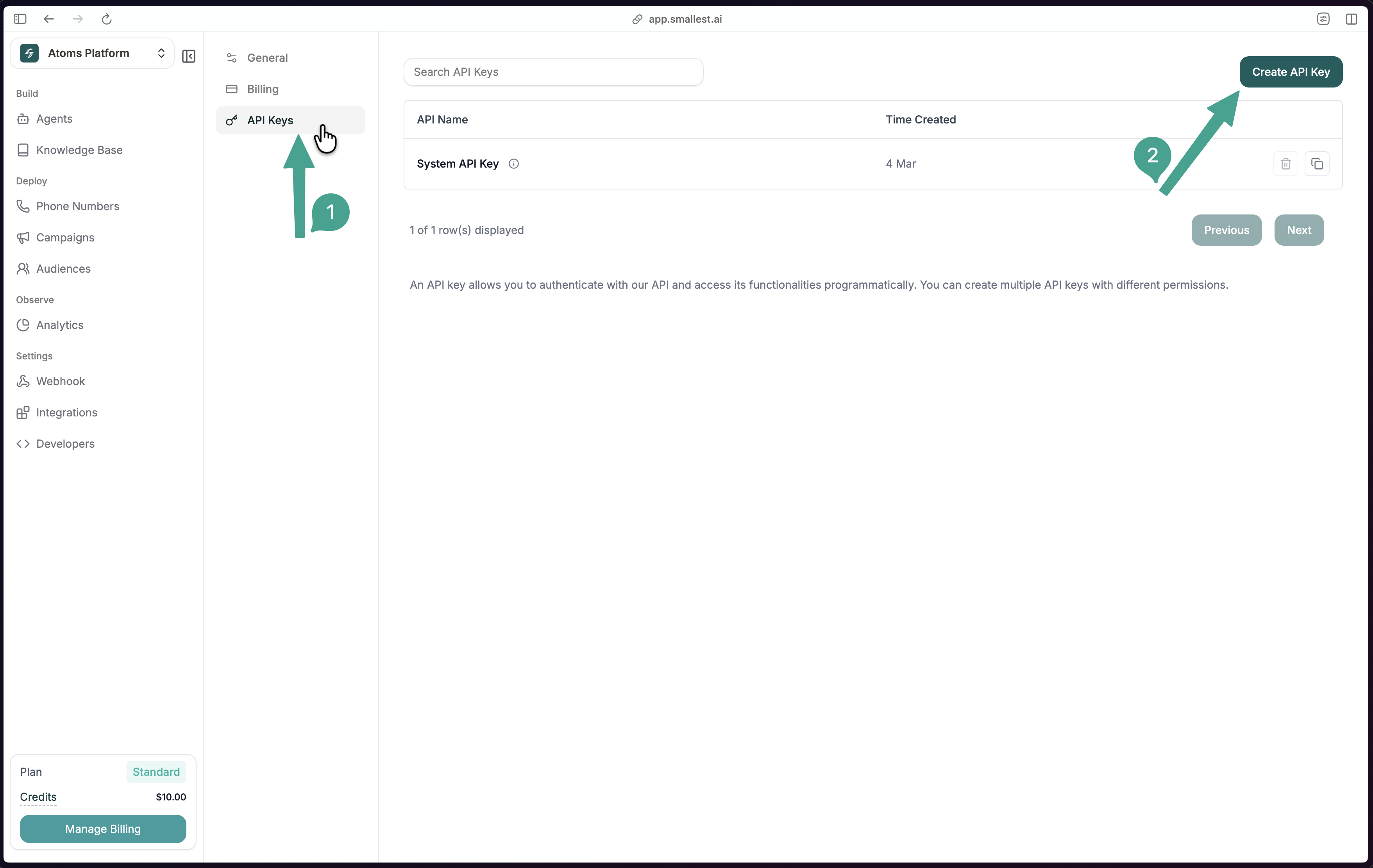 Click **Create API Key**, give it a descriptive name (e.g., `my-tts-app`), and click **Create API Key**.
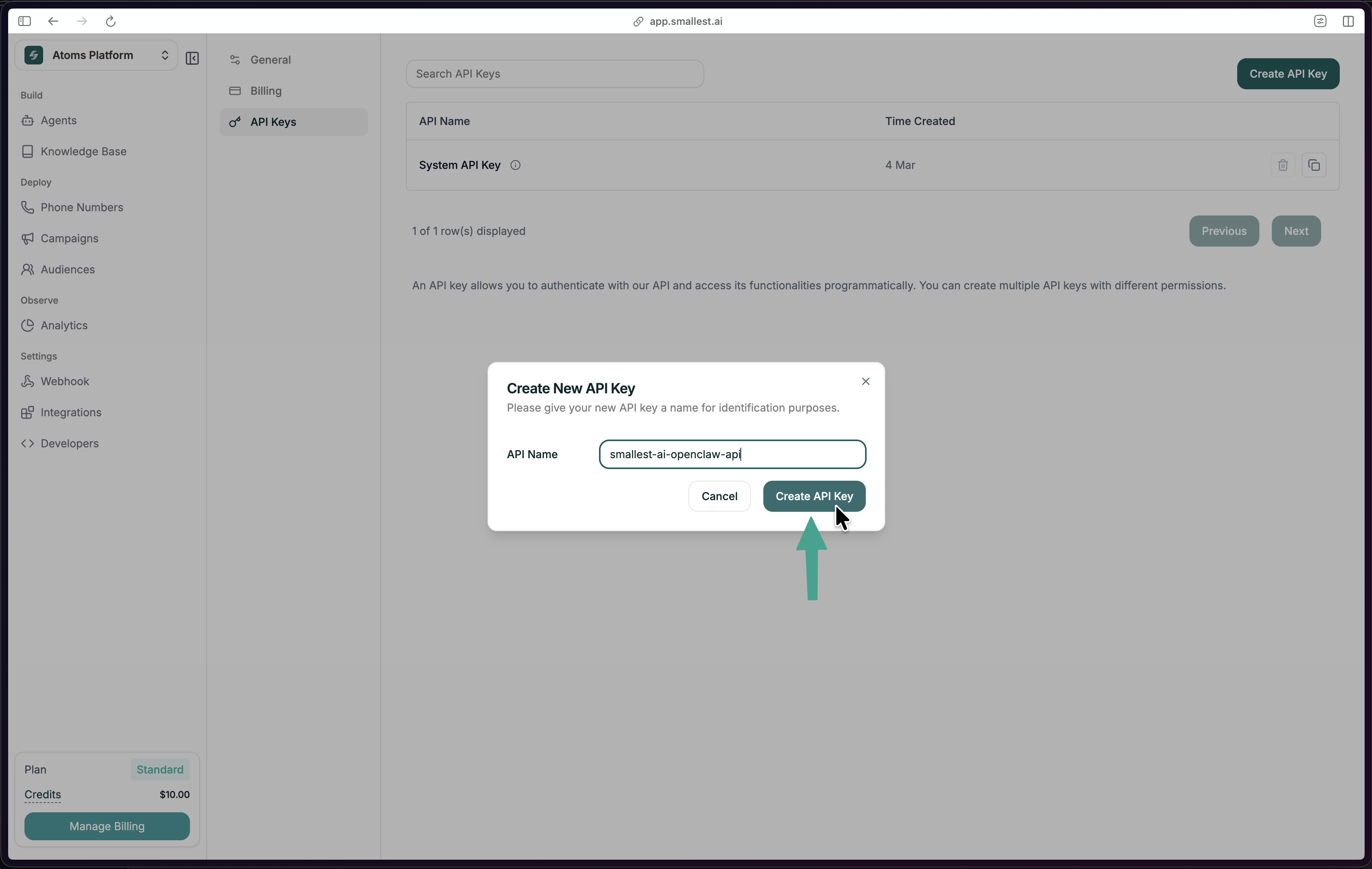 Copy the key immediately — it won't be shown again.
```bash theme={null}
export SMALLEST_API_KEY="your-api-key-here"
```
Add this to your `.bashrc` or `.zshrc` to persist across sessions.
## Using Your API Key
Include your key in the `Authorization` header with every request:
```
Authorization: Bearer YOUR_API_KEY
```
```bash cURL theme={null}
curl -X POST "https://api.smallest.ai/waves/v1/lightning-v3.1/get_speech" \
-H "Authorization: Bearer $SMALLEST_API_KEY" \
-H "Content-Type: application/json" \
-d '{"text": "Authentication test", "voice_id": "magnus", "output_format": "wav"}' \
--output test.wav
```
```python Python theme={null}
import os
import requests
response = requests.post(
"https://api.smallest.ai/waves/v1/lightning-v3.1/get_speech",
headers={
"Authorization": f"Bearer {os.environ['SMALLEST_API_KEY']}",
"Content-Type": "application/json",
},
json={"text": "Authentication test", "voice_id": "magnus", "output_format": "wav"},
)
```
```javascript JavaScript theme={null}
const response = await fetch(
"https://api.smallest.ai/waves/v1/lightning-v3.1/get_speech",
{
method: "POST",
headers: {
Authorization: `Bearer ${process.env.SMALLEST_API_KEY}`,
"Content-Type": "application/json",
},
body: JSON.stringify({
text: "Authentication test",
voice_id: "magnus",
output_format: "wav",
}),
}
);
```
## Security
Your API key is a secret. Never expose it in client-side code, public repositories, or browser applications.
* Store keys in environment variables, not in source code
* Use `.env` files locally (add `.env` to `.gitignore`)
* Rotate keys periodically via the console
* Each key tracks usage against your account quota
## Error Responses
| Status | Meaning |
| ----------------------- | ---------------------------------------- |
| `401 Unauthorized` | Missing or invalid API key |
| `403 Forbidden` | Key doesn't have access to this resource |
| `429 Too Many Requests` | Rate limit exceeded — wait and retry |
For rate limits and concurrency details, see [Concurrency and Limits](/v4.0.0/content/api-references/concurrency-and-limits).
Copy the key immediately — it won't be shown again.
```bash theme={null}
export SMALLEST_API_KEY="your-api-key-here"
```
Add this to your `.bashrc` or `.zshrc` to persist across sessions.
## Using Your API Key
Include your key in the `Authorization` header with every request:
```
Authorization: Bearer YOUR_API_KEY
```
```bash cURL theme={null}
curl -X POST "https://api.smallest.ai/waves/v1/lightning-v3.1/get_speech" \
-H "Authorization: Bearer $SMALLEST_API_KEY" \
-H "Content-Type: application/json" \
-d '{"text": "Authentication test", "voice_id": "magnus", "output_format": "wav"}' \
--output test.wav
```
```python Python theme={null}
import os
import requests
response = requests.post(
"https://api.smallest.ai/waves/v1/lightning-v3.1/get_speech",
headers={
"Authorization": f"Bearer {os.environ['SMALLEST_API_KEY']}",
"Content-Type": "application/json",
},
json={"text": "Authentication test", "voice_id": "magnus", "output_format": "wav"},
)
```
```javascript JavaScript theme={null}
const response = await fetch(
"https://api.smallest.ai/waves/v1/lightning-v3.1/get_speech",
{
method: "POST",
headers: {
Authorization: `Bearer ${process.env.SMALLEST_API_KEY}`,
"Content-Type": "application/json",
},
body: JSON.stringify({
text: "Authentication test",
voice_id: "magnus",
output_format: "wav",
}),
}
);
```
## Security
Your API key is a secret. Never expose it in client-side code, public repositories, or browser applications.
* Store keys in environment variables, not in source code
* Use `.env` files locally (add `.env` to `.gitignore`)
* Rotate keys periodically via the console
* Each key tracks usage against your account quota
## Error Responses
| Status | Meaning |
| ----------------------- | ---------------------------------------- |
| `401 Unauthorized` | Missing or invalid API key |
| `403 Forbidden` | Key doesn't have access to this resource |
| `429 Too Many Requests` | Rate limit exceeded — wait and retry |
For rate limits and concurrency details, see [Concurrency and Limits](/v4.0.0/content/api-references/concurrency-and-limits).