> ## Documentation Index
> Fetch the complete documentation index at: https://smallestai-ff1e543d.mintlify.site/llms.txt
> Use this file to discover all available pages before exploring further.

# Projects

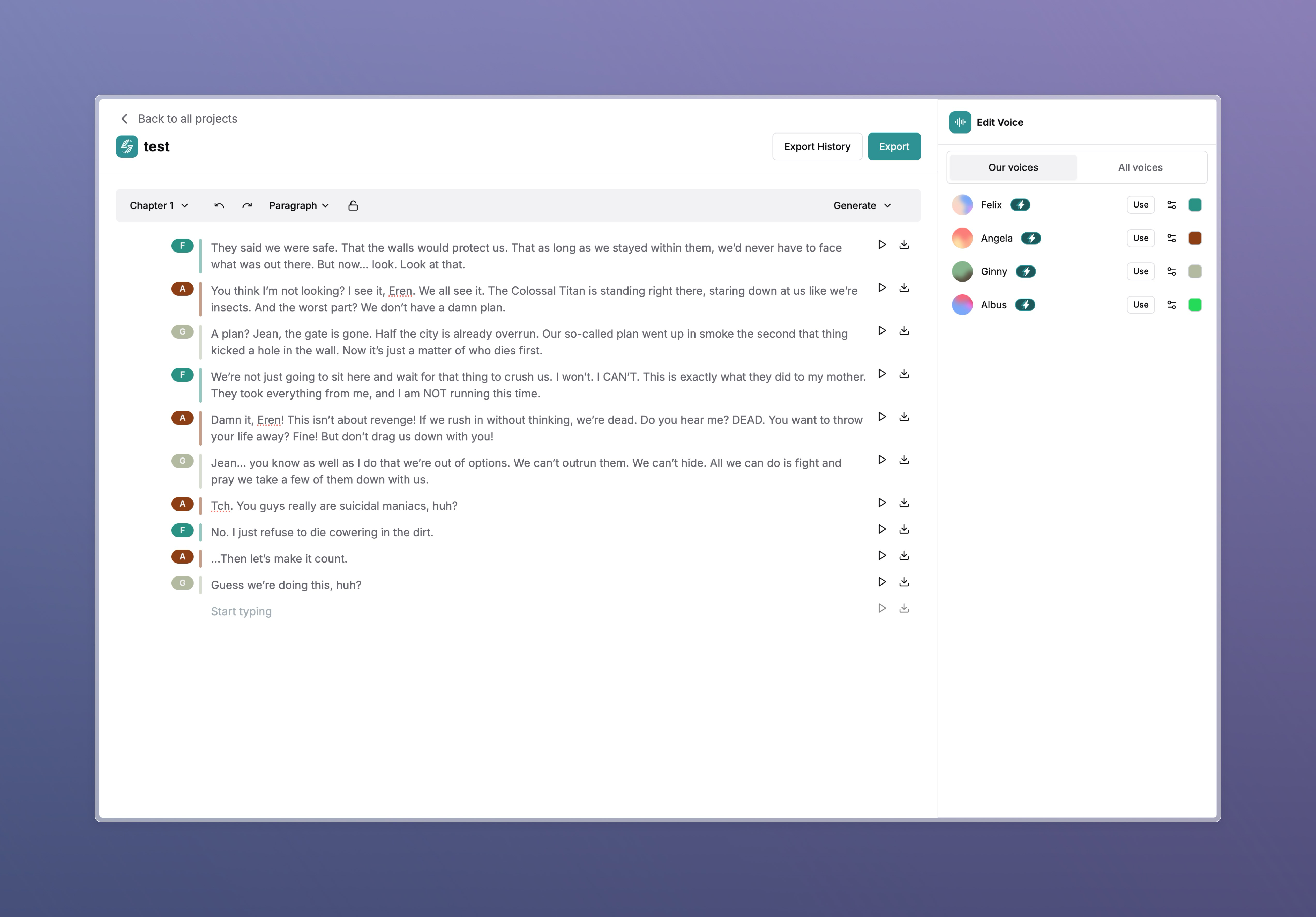
> Create and manage your projects in Waves.

<img
  style={{
width: '100%',
height: 'auto',
borderRadius: '10px',
boxShadow: '0 0 10px 0 rgba(0, 0, 0, 0.1)'
}}
  src="https://d4a5s42qh2351.cloudfront.net/static-images/projects.png"
  alt="Projects"
/>

## Introduction

Welcome to the official documentation for our text-to-speech (TTS) project. Our platform is a state-of-the-art audio synthesis tool designed to convert written text into high-quality, natural-sounding speech. It is particularly useful for content creators, authors, educators, and businesses looking to create voice-driven experiences efficiently.

## Key Features
<AccordionGroup>
  <Accordion icon="headset" title="Multiple Voices">
    <img
      src="https://d4a5s42qh2351.cloudfront.net/static-images/projects-voices.png"
      alt="Multiple Voices"
      style={{
    width: '300px',
    height: 'auto',
    borderRadius: '10px',
    boxShadow: '0 0 10px 0 rgba(0, 0, 0, 0.1)'
  }}
    />

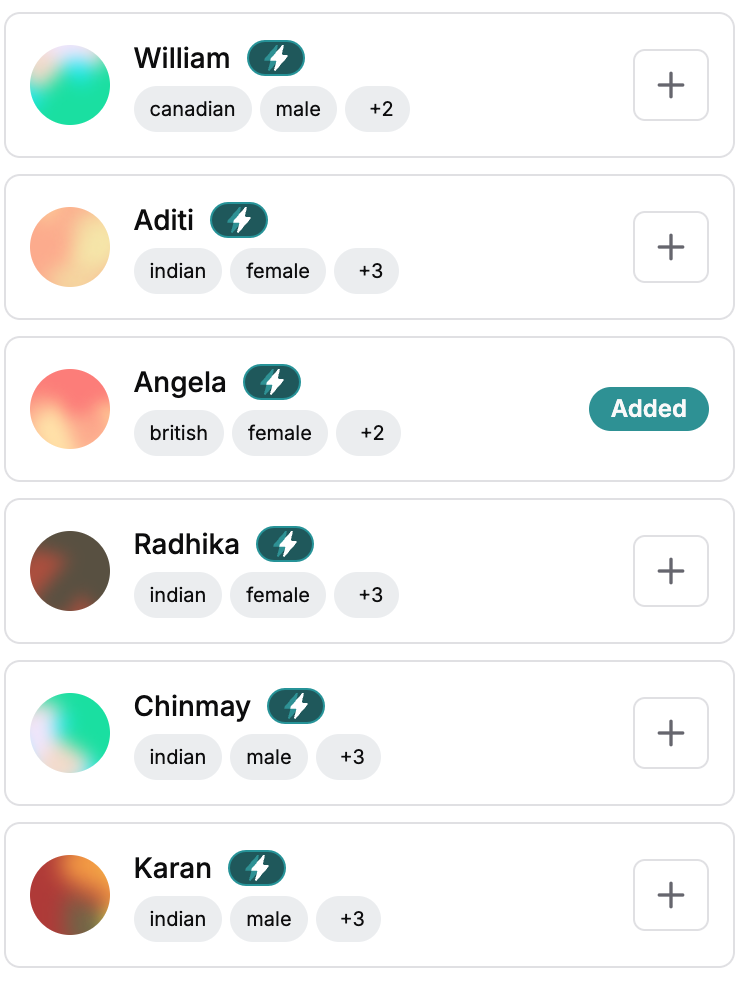
    Access a diverse selection of AI-generated voices tailored for different use cases. Choose from various genders, age groups, and accents to find the perfect match for your project.

    <ul>
      <li>
        Click on a voice avatar to preview it.
      </li>

      <li>
        Click the + icon to add it to your project.
      </li>
    </ul>
  </Accordion>

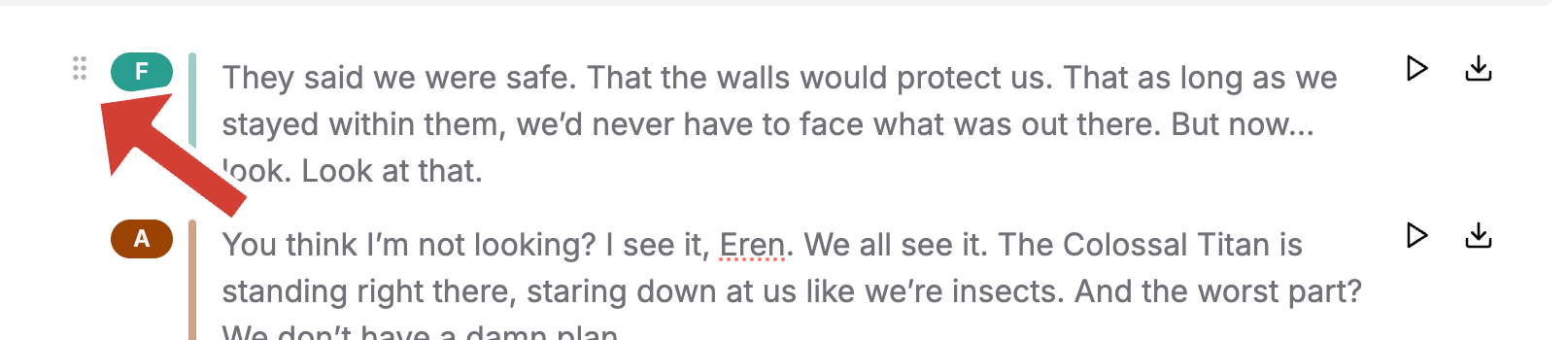
  <Accordion icon="bars" title="Drag-and-Drop Content Management">
    <img src="https://d4a5s42qh2351.cloudfront.net/static-images/project-drag.png" alt="Drag-and-Drop Content Management" />

    Easily organize your content with an intuitive block-based editing system. Simply click and drag to rearrange content blocks for a seamless editing experience.
  </Accordion>

  <Accordion icon="shuffle" title="Flexible Audio Generation">
    Easily transform text into speech with flexible conversion options. Generate audio for the entire text or select specific blocks as needed.

    <ul>
      <li>
        Click on the play button to preview the generated audio.
      </li>

      <li>
        Click on the Generate Selected button to convert the selected text to speech.
      </li>

      <li>
        Click on the Generate Till End button to convert the entire text to speech.
      </li>
    </ul>
  </Accordion>

  <Accordion icon="book" title="Chapter Management">
    Organize your content into chapters for better management and navigation.
  </Accordion>

  <Accordion icon="user-plus" title="Cloned Voices">
    Easily integrate cloned voices into your projects. Simply add the cloned voice to your project and start using it in your content seamlessly.
  </Accordion>

  <Accordion icon="gear" title="Advanced Voice Settings">
    Fine-tune your voice output with advanced settings. Use the gear icon to adjust speed, consistency, and enhancement options for a more customized experience.
  </Accordion>

  {' '}

  <Accordion icon="lock" title="Secure Block Locking">
    <p>
      Protect finalized content from unintended modifications by locking
      blocks. Ensure important sections remain unchanged.
    </p>
  </Accordion>

  <Accordion icon="download" title="One-Click Export Options">
    <p>
      Easily download individual voice outputs with a single click.
      Streamline your workflow with quick export options.
    </p>
  </Accordion>
</AccordionGroup>

## Use Cases

### Content Creation

* Transform blog posts, articles, and scripts into engaging audio content.
* Enhance storytelling with dynamic voice narration.

### Education and Accessibility

* Convert textbooks and educational materials into audio formats.
* Improve accessibility for visually impaired users.

### Business and Marketing

* Create audio advertisements and voiceovers for promotional content.
* Generate automated voice responses for customer support systems.

## Getting Started

### Installation & Setup

1. <a href="https://app.smallest.ai/waves/studio/create">Register for an account</a> and
   log into the platform.
2. Create a new project or open an existing one.
3. Add or paste your text content to the project.
4. Select a voice, adjust settings, and generate speech.
5. Use the drag-and-drop editor to organize your content.
6. Export the final output in your preferred format.

### Best Practices

* Use chapters to organize your content.
* Lock finalized blocks to prevent accidental edits.
* Experiment with different voice settings for the best results.
* Use the preview to check the generated speech before exporting.
* Use the clone feature to create a new voice with your own style.
* Use the gear icon to adjust speed, consistency, and enhancement options for a more customized experience.

### Get in Touch

<CardGroup cols={1}>
  <Card title="Talk to Us" icon="headset" href="mailto:support@smallest.ai">
    Drop a mail at [support@smallest.ai](mailto:support@smallest.ai) to talk to sales if you are
    looking for enterprise support.
  </Card>
</CardGroup>

Join our community and stay connected with the latest developments:

* **Support**: Reach out to our support team at [support@smallest.ai](mailto:support@smallest.ai) for any queries or assistance.
* **Community**: Join our [Discord server](https://discord.gg/9WtSXv26WE) to connect with other developers and get real-time support.
* **Blog**: Follow our [blog](https://smallest.ai/blog) for insights, tutorials, and updates.

Thank you for choosing Waves. We look forward to helping you create amazing voice experiences!
